> For the complete documentation index, see [llms.txt](https://help.slidespilot.com/llms.txt). Markdown versions of documentation pages are available by appending `.md` to page URLs; this page is available as [Markdown](https://help.slidespilot.com/how-to/create-infographic-from-webpage.md).
# Create Infographic from Webpage
### AI-Powered Infographic Creator
SlidesPilot's AI Infographic Creator transforms any webpage into a visually compelling, information-rich infographic in minutes. More than just a graphic generator, it is an intelligent engine that analyzes, structures, and visualizes your webpage content into a clear and engaging narrative. Simply paste your webpage link, provide guidance to the AI, select your preferred visual type and style, and get a polished infographic ready to export as an image or embed in your presentation.
### Use Cases
* **Education & Explainers:** Visualize complex concepts, historical timelines, scientific processes, or learning frameworks for students and educators.
* **Marketing & Content:** Turn product features, brand statistics, campaign data, or market trends into shareable, eye-catching infographic assets.
* **Data Storytelling:** Present research findings, survey results, comparison breakdowns, or step-by-step processes in a structured visual format.
* **Business Communication:** Summarize company milestones, organizational workflows, strategic roadmaps, or KPI dashboards into clear visual snapshots.
* **Social Media & Publishing:** Create platform-ready infographics for blog posts, LinkedIn articles, newsletters, or presentation slides.
### Step-by-step Guide: Creating an Infographic from a Webpage with SlidesPilot
{% stepper %}
{% step %}
#### Step 1 — Log in to SlidesPilot
Logging in to SlidesPilot is simple. Choose your **Google Account** or **Apple Account** for a quick, one-click login (new users are automatically signed up). This ensures all your generated infographics are securely saved. Alternatively, you can log in using your email address—we’ll send a secure verification code right to your inbox.
{% endstep %}
{% step %}
#### Step 2 — Access the AI Infographic Creator
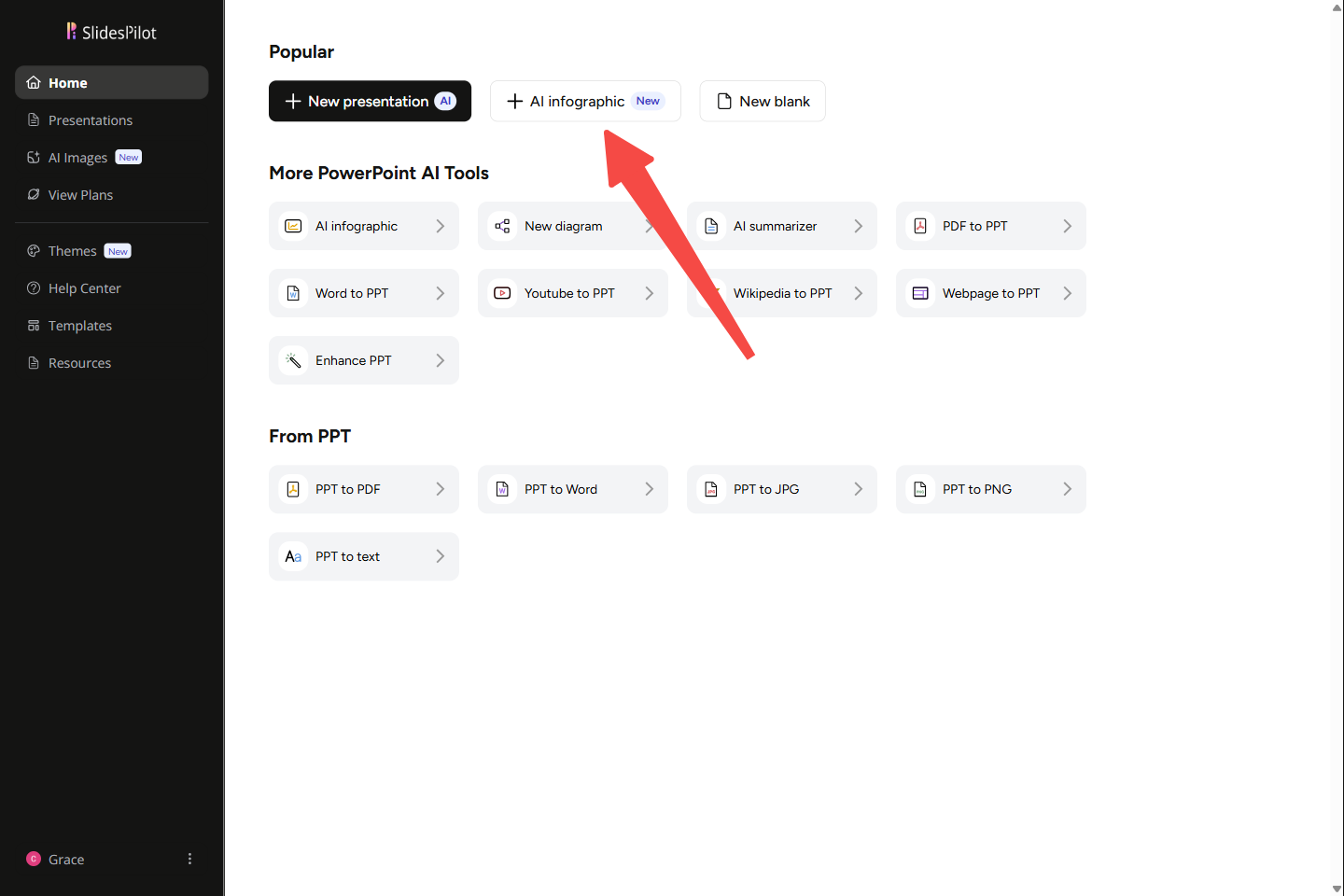
Once logged in, you'll land in your **Workspace**. You can use the left-hand sidebar to easily navigate. Just head to the Home page, where you'll spot **AI Infographic** at the top. Click it to open the creator.
{% endstep %}
{% step %}
#### Step 3 — Select a Visual Type
Choose from over 15 visual types for your infographic based on the information you are presenting. If you don't have a specific design in mind, simply leave the default **Let AI Explore** selected, and the AI will automatically pick the perfect structure for your content.
***How to choose the right visual type:***
* **Let AI Explore:** Choose this if you want the AI to automatically select the best visual format for your content.
* **Mind Map:** Best for brainstorming or showing how different sub-topics branch out from one central idea.
* **Light Bulb:** Ideal for highlighting a core idea, an innovation, or key takeaways.
* **Brain:** Great for topics related to psychology, learning, creativity, or logical thinking.
* **Pipe Process:** Perfect for illustrating a flow of data, a manufacturing sequence, or a multi-stage system.
* **Timeline:** Best for showing historical events, project schedules, or progress over a specific period.
* **Circular:** Use this for continuous processes, life cycles, or repeating loops.
* **Comparison:** Ideal for weighing pros and cons or looking at two different concepts side-by-side.
* **Venn:** Great for showing overlapping relationships or commonalities between different categories.
* **Statistical:** Best for data-heavy content, survey results, or highlighting key metrics.
* **Doughnut:** Good for showing parts of a whole or percentages (similar to a pie chart).
* **Hierarchy:** Perfect for organizational charts, team structures, or showing levels of authority.
* **Pyramid:** Use this for foundational concepts or prioritizing levels (like Maslow's hierarchy of needs).
* **Funnel:** Ideal for sales processes, filtering data, or showing how a broad starting point narrows down to a specific outcome.
* **Geographic:** Best for global data, regional statistics, or location-based information.
* **PESTLE:** Choose this for business analysis covering Political, Economic, Social, Technological, Legal, and Environmental factors.
* **SWOT:** Choose this for strategic planning to highlight Strengths, Weaknesses, Opportunities, and Threats.
* **DNA:** Great for illustrating the core building blocks, fundamental elements, or the "genetics" of a brand or strategy.
{% endstep %}
{% step %}
#### Step 4 — Choose an Input Method
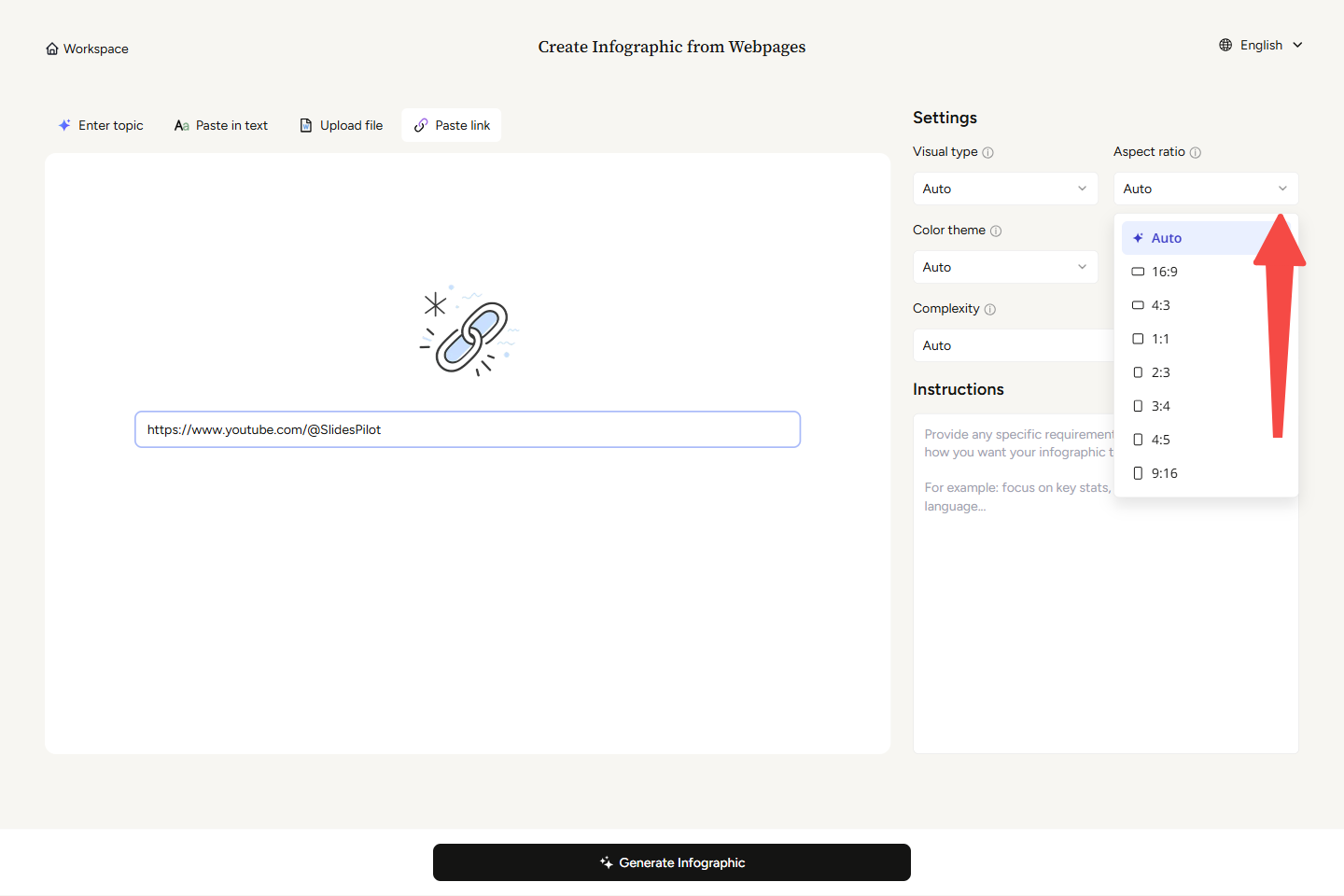
Inside the AI Infographic Creator, you'll see four options: **Enter topic**, **Paste in text**, **Upload file**, and **Paste link**. Select **Paste link** to start.
{% endstep %}
{% step %}
#### Step 5 — Paste Your Link
Simply paste your link into the URL input field. You can use a link from almost any source—whether it's YouTube, Wikipedia, or any other website. The AI will analyze the webpage to extract the key points and structure them visually.
{% endstep %}
{% step %}
#### Step 6 — Customize Your Settings & Instructions
On the right-hand side of the page, you'll find the **Settings** and **Instructions** panel, which allows you to customize how your infographic is generated. These options give you control over the visual style, dimensions, color, language, and the complexity level of your design.
#### **Settings**
***Visual type***
Visual type determines the overall structural design and layout of your infographic. This is the same option you encountered in **Step 3**. If you initially chose **Let AI Explore** at Step 3, and want to try a different look, or if you simply want to change your diagram type after seeing the result, you can easily adjust it here.
***How to choose the right visual type:***
* **Auto:** Helpful if you are unsure which layout fits best. The system automatically selects the most effective structure based on the nature of your webpage content.
* **Manual Selection:** Choose from 17 distinct diagrams to best tell your story. Whether you need a Timeline for a schedule, a Comparison for pros and cons, or a Statistical chart for data, you can instruct the AI to use a specific format. *(For a complete guide on when to use each specific diagram, please refer back to the list in Step 3.)*
***Aspect ratio***\
Choosing the right size ensures your graphic fits perfectly on the platform where you intend to share it, whether that’s a mobile screen, a presentation slide, a social media feed, or a printed document.
***How to choose the right aspect ratio:***
* **Auto:** The AI determines the best standard dimensions for your content based on the chosen visual type and the amount of information provided.
* **16:9 (Widescreen):** The standard landscape format. Ideal for presentation slides, desktop monitor viewing, or embedding in videos.
* **4:3 (Standard):** A classic landscape format. Best suited for traditional documents, PDFs, or viewing on tablets like the iPad.
* **1:1 (Square):** Perfectly balanced. The go-to choice for standard social media feeds, particularly Instagram grid posts and LinkedIn carousels.
* **2:3:** A tall vertical format, perfect for Pinterest pins or standard printed posters.
* **3:4:** A slightly wider vertical format, great for digital documents, reports, and tablet viewing.
* **4:5:** Optimized for mobile social media feeds. This is the ideal size for Instagram portrait posts, as it takes up maximum screen space without being cropped.
* **9:16 (Vertical):** The standard full-screen mobile format. Perfect for Instagram Stories, Reels, TikToks, or any content designed specifically for smartphone viewing.
***Color theme***\
The color theme defines the visual palette used throughout your infographic, helping to set the right mood and align with your webpage content.
***How to choose the right color theme:***
* **Auto:** The AI automatically applies a color scheme based on your specific webpage content.
* **Corporate:** Features professional blues and greens, ideal for business reports and formal presentations.
* **Tech:** Uses dark backgrounds with neon accents, perfect for software, AI, and digital innovation topics.
* **Vibrant:** Utilizes bold, eye-catching colors, great for grabbing attention in marketing or creative content.
* **Minimal:** Relies on clean, neutral colors to let your data and text stand out without visual distraction.
* **Nature:** Incorporates greens and earthy tones, excellent for sustainability, environment, or wellness topics.
* **Warm:** Features inviting oranges and corals, good for lifestyle topics or evoking enthusiasm and energy.
* **Cool:** Uses calm blues and purples, ideal for healthcare, education, or presenting complex data clearly.
***Language***\
The Language setting offers a diverse selection of 16 different languages for your generated text, empowering you to easily create infographics tailored for global, international, or localized audiences.
***How to choose your language:***
* **Auto:** The system will automatically generate the infographic in the primary language detected in your webpage content.
* **Manual Selection:** You can manually choose from 16 supported languages to ensure your output is exactly what you need. The available languages are: Arabic, Chinese (Simplified), Chinese (Traditional), Filipino, English, French, German, Hindi, Indonesian, Italian, Japanese, Korean, Malay, Portuguese, Russian, and Spanish.
***Complexity***\
Complexity controls how deeply your content is analyzed and broken down into distinct sections. Rather than just making the infographic longer, higher complexity means unpacking a subject into more granular, specific, and advanced sub-topics.
***How to choose the complexity level:***
* **Auto:** The AI determines the most natural structural breakdown based on the webpage content. Ideal for when you want the most standard, widely accepted framework without manual adjustment.
* **Simple (3-4 sections):** Condenses the topic into broad, high-level categories. Ideal for quick overviews or introductory audiences.
* **Balanced (5-6 sections):** Presents the standard, classic breakdown of a concept. Ideal for general audiences needing a complete but digestible understanding.
* **Comprehensive (7-8 sections):** Expands the topic to include nuanced or advanced sub-categories. Ideal for in-depth analysis or educational materials.
* **Detailed (9+ sections):** Provides an exhaustive, highly granular breakdown. Ideal for expert audiences or comprehensive reference materials.
#### **Instructions**
The Instructions text box allows you to provide custom directions to shape how the AI generates your content. Ideal for going beyond the standard settings to give the AI specific rules—such as telling the AI to focus on key stats, keep it concise, or use simple language.
{% endstep %}
{% step %}
#### Step 7 — Generate Your Infographic
Once you have pasted your link, the **Generate Infographic** button at the bottom of the screen will become active. Click it to create your infographic.
{% endstep %}
{% endstepper %}
### Edit, Download or Share your presentation
SlidesPilot offers several powerful options to enhance your presentation workflow:
* **Edit with the Help of AI:** SlidesPilot's built-in AI assistant makes updating your infographic effortless. Just click **Edit with AI**, type your requested changes into the text box, and let the AI do the rest.
* **Download and export:** Download your infographic as a PDF, PNG, or PowerPoint (.pptx) file, or export directly to Google Slides. This seamless integration lets you edit in your preferred apps while maintaining your existing workflow.
**Share:** There is also an option to generate a view-only link with one click. You can easily revert to private settings whenever you need.
### Summary
* Prepare your links to generate your custom infographic.
* Sign up or log in to use the full generation features—this protects your privacy and file security. The service is free with no credit card required at signup.
* Once the AI generates your infographic, you can export it to PowerPoint, Google Slides, PDF, or PNG to use in your favorite apps, or refine it directly using SlidesPilot's smart AI-powered online editor.
### Frequently Asked Questions
What kind of webpage links can I use to generate an infographic?
Any public link works! Whether it is a blog post, a news article, a Wikipedia page, or a company website, just paste the URL. The AI will automatically analyze the webpage, extract the key points, and take care of the writing and visual structure for you.
What about copyright on the content from links?
You're responsible for ensuring you have the rights or permission to process any content you provide. We recommend using this feature for your own content, public domain materials, or for personal and educational purposes that fall under Fair Use principles. Please refer to our Terms of Service for more details.
How can I ensure the best results for my infographic?
For a completely effortless experience, you can leave everything on *Auto* and let the AI instantly generate an engaging visual for you. However, to achieve a highly tailored result, we encourage you to provide specific details using *Settings* and *Instructions.* This allows you to easily customize the visual type, aspect ratio, color theme, language, and complexity to perfectly match your content.
What formats are available after generating my infographic?
SlidesPilot allows you to download your infographic as a PNG image, PowerPoint (.pptx), or PDF file, or export it directly to Google Slides.
Can I edit the infographic after it’s generated?
Absolutely! Instead of manually tweaking elements, you can edit your infographic using our intuitive AI assistant. It will instantly process your instructions and update the design for you.
---
# Agent Instructions
This documentation is published with GitBook. GitBook is the documentation platform designed so that both humans and AI agents can read, navigate, and reason over technical content effectively. Learn more at gitbook.com.
## Querying This Documentation
If you need additional information that is not directly available in this page, you can query the documentation dynamically by asking a question.
Perform an HTTP GET request on the current page URL with the `ask` query parameter, and the optional `goal` query parameter:
```
GET https://help.slidespilot.com/how-to/create-infographic-from-webpage.md?ask=&goal=
```
`ask` is the immediate question: it should be specific, self-contained, and written in natural language.
`goal` is optional and describes the broader end goal you are ultimately trying to accomplish on behalf of the user. GitBook uses it to tailor the answer towards what is most useful for that goal.
The response will contain a direct answer to the question and relevant excerpts and sources from the documentation.
Use this mechanism when the answer is not explicitly present in the current page, you need clarification or additional context, or you want to retrieve related documentation sections.